

How to copy music from iPod to PC
Save iPod songs
October 16, 2009 by Harvey Taylor
Tags: copy songs from ipod, copy music from ipod, copy songs off ipod, transfer music to computer, ipod copy, ipod transfer, ipod rip, itunes, bigasoft
Overview
Nowadays, most iPod fans have a huge music library and all of it is kept on a trusty PC. Now imagine that one day, your computer's hard drive crashes, and that music library is now gone.
Then you remember that all your songs are still on your iPod, safe and intact. You plug it in, and then you realize that iTunes only allows the downloading of music from iTunes to iPod, not iPod to iTunes. There is nothing you can do right now. Do you really want to spend hours re-downloading all your music? We didn't think so.
Bigasoft iPod Transfer helps to transfer media files between iPod/iPhone/iPad and computer in just one click. It can copy iPod songs, movies, and playlists back to computer and import computer files or folder even without iTunes.
Luckily for you, with the handy iPod copy software, you can easily copy songs from iPod with just 4 easy steps. Here's how to copy songs off iPod and copy it back to your computer.
Free Download and launch
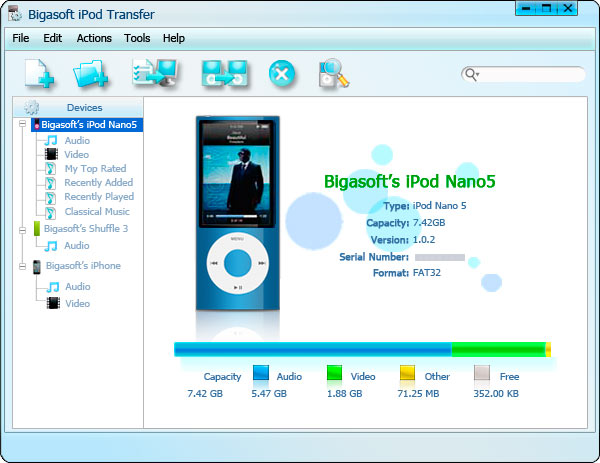
Firstly, Free Download Bigasoft iPod Transfer and fire up the software. Then, the following main interface pops up.
Step 1 Connect iPod
Dock iPod and open it, connect iPod to your computer through USB cable.
The software will automatically detect the iPod, display all the contents of iPod in the left device list and show its device info on the right window.
Step 2 Select songs
Locate the library or playlist in which your songs stayed and check the songs to be transferred in the file list on the right window.
Step 3 Copy songs back
Click the "Export to Local" button to select the target folder for saving iPod files in the dialog that appears, and then start to transfer music to computer.
Tips: You can directly drag selected songs to Windows Explore for fast copy.
Step 4 Eject
From the File menu, choose Eject and Eject All.
Tips: You can press Ctrl + J to fast eject iPod.
Enjoy
All your songs in iPod have been saved to your PC with the iPod rip tool now. You can play or re-import them to iTunes.
Troubleshooting
- I have connected my iPod, but it cannot be recognized
- For iPod users, please enable disk use in iTunes first.
Resources
FREE Download and Start Enjoying Now (5.94MB)
Learn more about Bigasoft iPod Transfer ...
More Articles on Bigasoft.com ...
To find out more Bigasoft Solutions to enjoy your new digital life, you can go here.
Posted by Harvey Taylor. By the way, you may join me on Google+.