

Put Ogg to iTunes/iTunes Match to Play Ogg in iTunes
Easy Way to Play Ogg in iTunes/iPod/iPhone/iPad/iPad 2/iPad 3/iPad 4/iPad Mini/iPad AiriPhone 5/iPhone 5S/iPhone 5C
November 30th, 2012 Updated by Harvey Taylor
Tags: ogg to itunes, play ogg, ogg, itunes match, ogg to mp3, convert ogg, convert ogg to mp3, ogg to itunes match, ogg to mp3 converter, ogg to iphone 4s, play ogg on iphone 4s, mp3 to ogg, icloud ogg, convert ogg to itunes match, ogg to itunes 11, ogg itunes 10.7
Overview
As a proprietary digital media player application, iTunes has become a part of our digital life. It is widely used for playing and organizing digital music and video files. The powerful iTunes is also an interface to manage the contents on Apple's iPod and iPhone lines, as well as the iPad.
Though iTunes 10 can currently read, write and convert between MP3, AIFF, WAV, MPEG-4, AAC (.m4a) and Apple Lossless, there is limited to play Ogg files. When you try to add Ogg to iTunes (including the new iTunes 11), iTunes even not allow to add Ogg, let alone to play Ogg in iTunes.
This article will introduce two easy methods to add Ogg to iTunes 11/10.7/10.6/10.5 or iTunes Match and then play Ogg in iTunes successfully.
Solution 1 Install Xiph QuickTime Components
Install Xiph QuickTime components to achieve adding Ogg to iTunes and then play Ogg in iTunes successfully.
- The solution is free and easy.
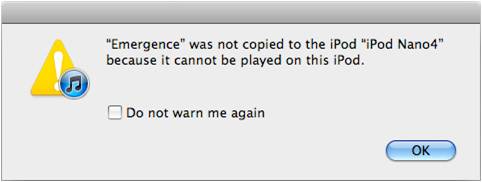
- Though iTunes can play Ogg, iPods are not yet compatible with Ogg. When you try to synchronize the Ogg file from iTunes to iPod, iPod will pop up the following windows and refuse this Ogg file.
- If you want both your iTunes and your iPod/iPhone/iPad/iPad2/iPad3/iPad4/iPad Mini/iPad Air to play Ogg, you can refer to Solution 2.
- This method applies to PC as well as Mac. Just remember to download the right version components (PC or Mac).
Step 1 Install Xiph QuickTime Components
Make sure iTunes is not running.
Install the official Xiph QuickTime Components from Xiph.org.
To make XiphQT work with iTunes on 64 bit Mac OS X, there's an extra install step necessary to use XiphQT on 64 bit machines:
- 1. "show in finder" your iTunes binary (either navigate to the Applications folder, or right/control click on it in the dock, and choose "show in finder")
- 2. right/control click on iTunes in the finder, and select "Get Info"
- 3. Under General, check the box marked "Open in 32-bit mode"
iTunes is a QuickTime based application, these components and frameworks allow any QuickTime application to play Ogg files for that matter.
Step 2 Put Ogg to iTunes
Ogg files may be dragged into the iTunes Library window or added via the File > Add File to Library... command.
Just play Ogg in iTunes to enjoy!
Solution 2 Convert Ogg to MP3 with Audio Converter
Convert Ogg to MP3 so as to play Ogg in iTunes/iTunes Match/iPod/iPhone/iPad/iPad 2/iPad 3/iPad 4/iPad Mini/iPad Air the new iPad mini successfully.
Make Preparation
Free download Bigasoft Audio Converter (Windows Version , Mac Version ) install and run it.
Bigasoft Audio Converter is an easy-to-use audio conversion tool which provides a speedy way to convert favorite songs between almost all formats including MP3, OGG, WMA, M4A, AAC, AC3, WAV, etc. It can be used as Ogg to MP3 converter, Ogg to WAV converter, MP3 to Ogg converter and more. Additionally, it is equipped with advanced editing function.
Step 1 Import Ogg to Bigasoft Audio Converter
Click "Add File" button to import Ogg to Bigasoft Audio Converter or simply drag Ogg into the Bigasoft Audio Converter main window.
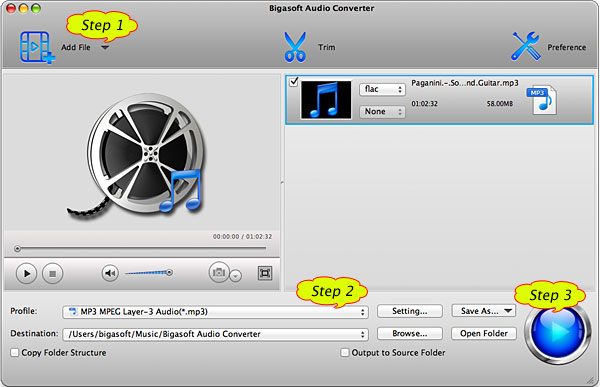
Step 2 Set MP3 as output format
Hit the drop down button of "Profile" to select iTunes compatible format like MP3.
Step 3 Start to convert Ogg to MP3
Click "Convert" button to convert Ogg to MP3. It will be finished in few minutes.
Step 4 Drag the converted MP3 to iTunes
Simply drag the converted MP3 to iTunes, now you can play Ogg in iTunes and just enjoy it!
- With this method you will not only play Ogg in iTunes, but also play Ogg on your iPod/iPhone/iPad.
- Before to convert Ogg to MP3, you can edit your Ogg files including trim, crop, merge, set of bitrates and more with the ideal Bigasoft Audio Converter.
- With Bigasoft Audio Converter, you can also convert Ogg to WAV, WAV to Ogg, Ogg to WMA, WMA to Ogg, Ogg to M4A, Ogg to AIFF, and more. That is you can convert between almost all the audio formats, you even can extract audio from video.
- This method applies to PC as well as Mac. Just remember to download the right version Bigasoft Audio Converter (PC or Mac).
- This method also support convert Ogg to iTunes Match as well as convert Ogg to iPhone 4S, then it is just easy to iCloud Ogg to all your devices including iPod/iPhone/iPad/Apple TV.
Resources
FREE Download and Start Enjoying Now (9.03MB)
Learn more about Bigasoft Audio Converter ...
Got a Mac? Free download your copy here (22.66MB)
Learn more about Bigasoft Audio Converter for Mac
...
More Articles on Bigasoft.com ...
To find out more Bigasoft Solutions to enjoy your new digital life, you can go here.
Posted by Harvey Taylor. By the way, you may join me on Google+.